CutPapa

In development · v0.1A Mac app for the Liene PixCut S1

Stop arranging stickers one by one. Resize one, and the whole sheet re-packs itself.

CutPapa is a Mac app for the Liene PixCut S1 sticker printer and cutter that takes the manual arranging out of making stickers. Drop in your photos and it removes the background, adds a white border, and creates the cut line, all on your Mac. Change the size or number of copies of any sticker and the rest move aside at once, re-packing the 4×7 sticker sheet so no space is wasted.

See how it works Read the FAQ

In development. Not yet available for download. Requires macOS 14 or later.
Not an official Liene product

Try it: drag the slider to resize

Copies 1
Placed 8 Used 127.9 / 177.8 mm

Illustrative animation: boxes are used here for simplicity. The app arranges stickers by their actual outlines.

3 mmdefault gap between stickers, adjustable
0° / 90° / 180° / 270°automatic rotation to fill gaps
10–95 mmwidth range for each sticker
0photos uploaded to the cloud

Three chores of arranging by hand that CutPapa takes off your plate

By handEvery new sticker means finding a free spot yourself.
With CutPapaDrop images in and they are arranged automatically, with gaps filled.
By handResize one sticker and you have to move all its neighbors again.
With CutPapaAfter a resize, the other stickers move aside and re-arrange on their own.
By handWorried about cuts landing too close, you leave lots of empty space.
With CutPapaA fixed 3 mm gap: tightly packed, with cut lines that never touch.

Three things, done properly

01

Auto layout that wastes no paper

Stickers keep a fixed gap. The app tries different orders and 0° / 90° / 180° / 270° rotations, then picks the arrangement that fits the most stickers in the shortest length of paper. Resize, change copies, or delete one, and the sheet re-arranges immediately. Automatic rotation can be switched on for the whole sheet to use the most space, or fixed per sticker when you want everything facing the same way.

Learn more — Auto layout that wastes no paper
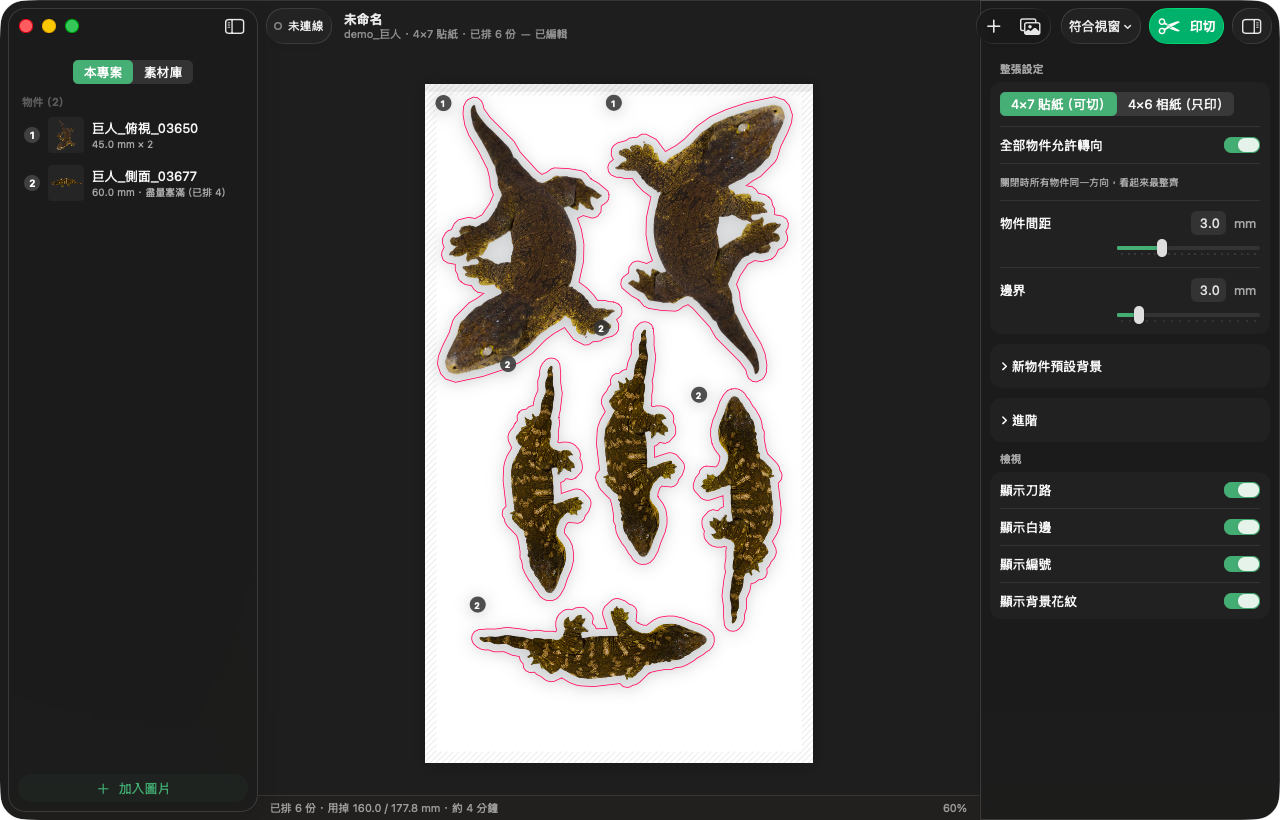
CutPapa main window: six cut-out gecko stickers arranged automatically on a 4×7 sticker sheet, each with a white border and a magenta cut line, with gap and margin settings on the right
Two designs, six stickers, rotated automatically to fit one sheet using 160.0 of 177.8 mm.
02

One-step background removal, border and cut line included

Backgrounds are removed on your Mac with the Vision framework built into macOS. Photos are never uploaded. Set the white border from 0 to 5 mm per sticker; the cut line follows its outer edge. Cut lines are smoothed with rounded joins, and you can choose a softer rounded outline for cleaner sticker edges.

Learn more — One-step background removal, border and cut line included
03

Check before you print, because one wasted sheet is too many

Before every job you must confirm which paper is loaded. Cut lines, real sizes in mm, and blade pressure are all visible. If something fails, the job stops. It never reprints on its own.

Learn more — Check before you print, because one wasted sheet is too many
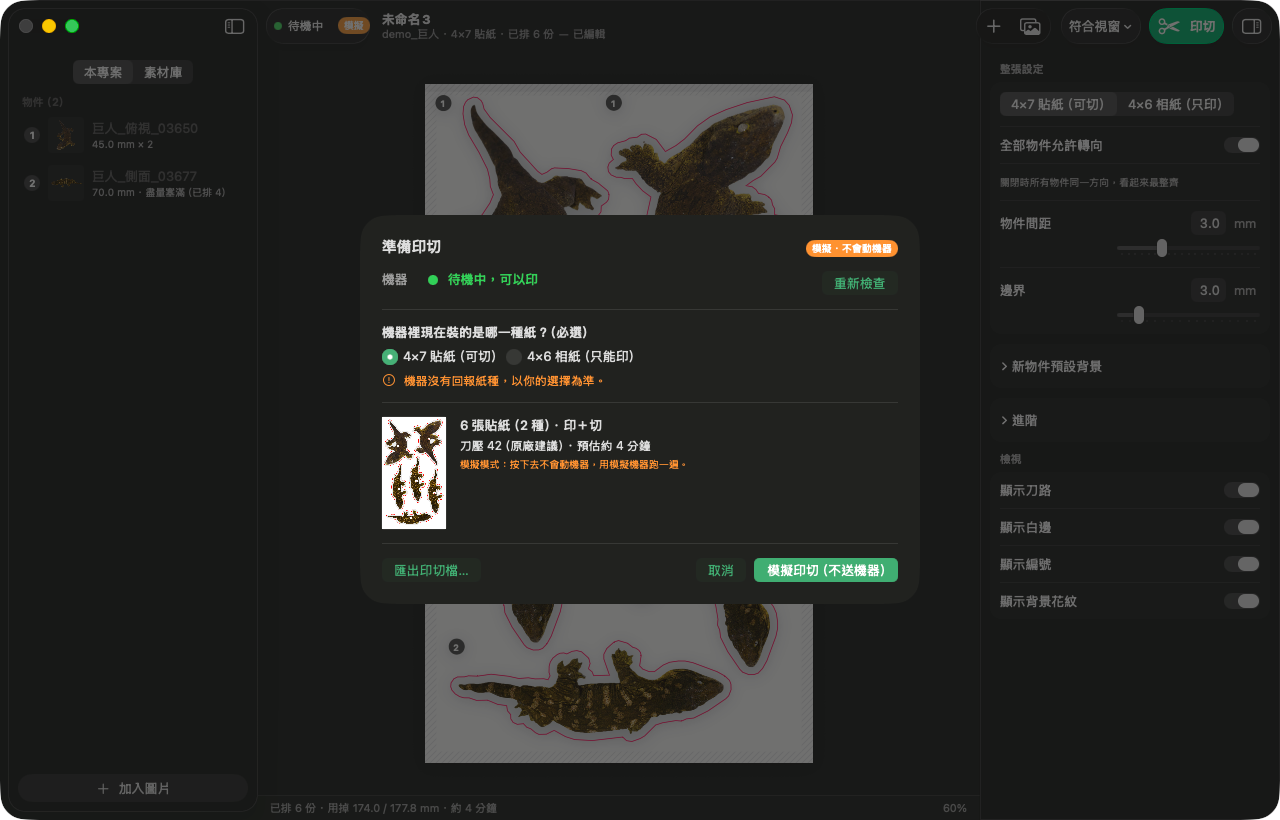
CutPapa pre-print confirmation: you must choose whether 4×7 sticker paper or 4×6 photo paper is loaded, with sticker count, blade pressure 42, and estimated time shown
Pre-print check: paper type is required; blade pressure and estimated time are shown.
04

Background layer: a full design across the sheet, nothing left blank

Split your design into two layers. The sticker layer is cut in its original positions, and the background layer is printed across the whole sheet. After the stickers are peeled off, what remains is still a finished, textured sheet, ready to give or sell as a complete sticker set.

  • The sticker layer is a transparent PNG. Positions are locked to your design and are not re-arranged.
  • The background is printed only, never cut. Cut lines follow the stickers.
  • Resize or move a single sticker and the background stays as it is. The white border under the sticker follows it automatically.
  • By default the background is inset 3 mm from the paper edge to avoid color misalignment at the edges.

Screenshots show the Traditional Chinese interface.

Cute things to make

Pets and reptiles

Cut out photos of your cat, dog, or gecko and make stickers that are all theirs.

Planners and journals

Fill a sheet with small designs. Resize any of them without arranging again.

Small shop packaging

Seal stickers, thank-you stickers, and small brand labels, packed onto one sheet.

Kids' drawings

Photograph a child's drawing, remove the background, and it becomes a sticker.

Names and labels

Use text stickers for name labels and sorting labels.

AI sticker sets

A full AI-generated sticker sheet is split into separate pieces automatically.

From photo to sticker in four steps

  1. Drop in your images

    Drag in photos or transparent PNGs, or pick from the Photos app. A full sticker-sheet image with several designs is split into separate pieces automatically.

  2. Background removed, border added

    The app removes the background on your Mac, adds a white border around the subject, and creates the cut line.

  3. Resize and watch it re-arrange

    Set the width and number of copies for each sticker, or turn on Fill Sheet. Every change re-arranges the whole sheet.

  4. Confirm the paper, then print and cut

    The pre-print check confirms paper type, blade pressure, and cut lines, then sends the job to the PixCut S1 to print first and cut second.

There is more

Fill Sheet

Fixed copies are placed first, then the remaining space is filled until nothing else fits.

Drag to place and lock

Drag a sticker where you want it and it locks in place. The others re-arrange around it.

It tells you what does not fit

Stickers that do not fit are listed. Your designs are never shrunk behind your back.

Shapes and background patterns

Follow the outline, or use a circle or rounded square. Add a solid color, contour lines, waves, dots, or your own image as the background.

Text stickers and templates

Add text stickers and blank shapes. Save a finished layout as a template and reuse it with new photos.

Library

Keep your cut-out images in one place with tags, search, and duplicate detection. Deleted items can be restored for 30 days.

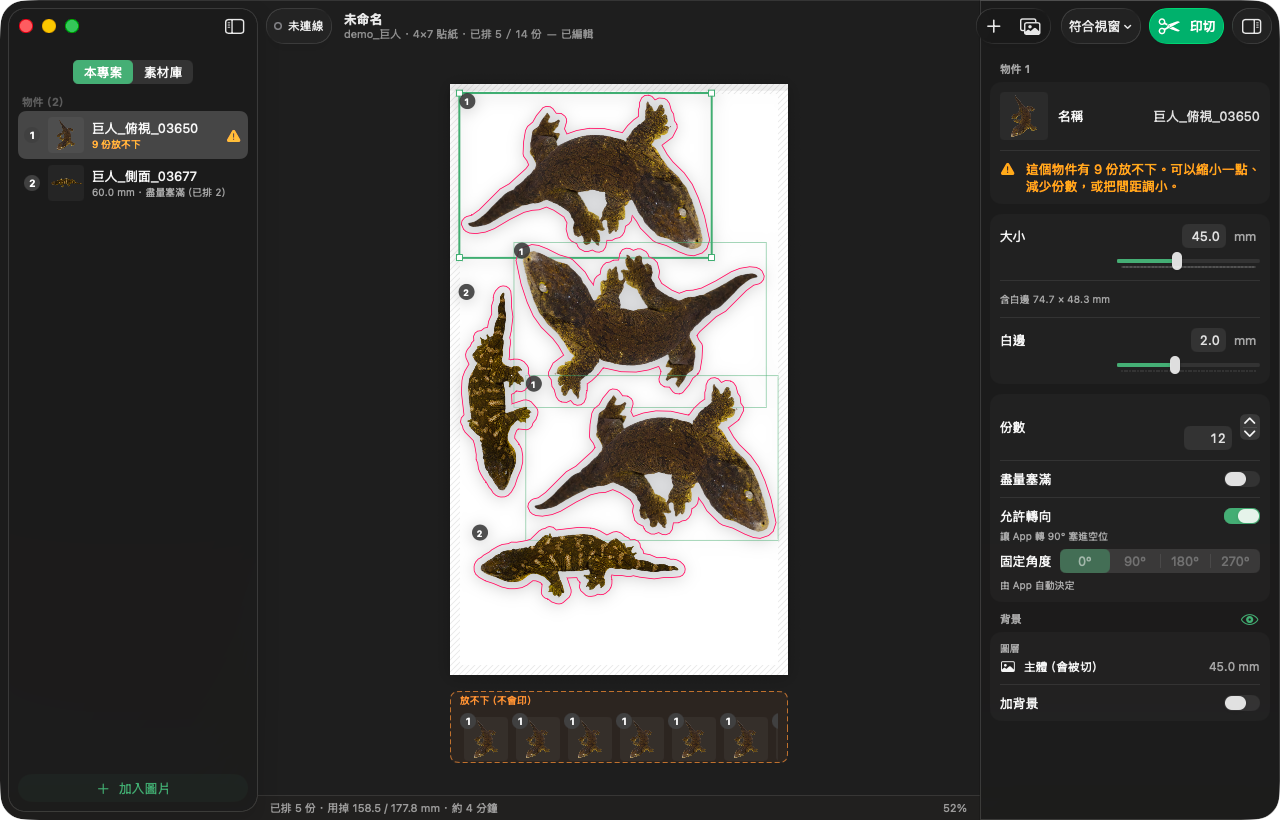
CutPapa editor: five gecko stickers arranged on a 4×7 sticker sheet, with the nine copies that do not fit listed below the sheet as not placed, and a hint on the right to make them smaller, reduce copies, or narrow the gap
Stickers that do not fit are listed below the sheet, never shrunk without asking.

Specifications

Supported machineLiene PixCut S1
System requirementsmacOS 14 or later
Paper that can be cut4×7 sticker paper (101.6 × 177.8 mm)
Sticker width10–95 mm
Sticker gap / paper margin3 mm each by default, adjustable
Automatic rotation0° / 90° / 180° / 270°
Blade pressureKP 30–60, default 42; warning above 50
Show all specifications
ConnectionUSB
Print-only paper4×6 photo paper (never sent for cutting)
Sheet resolution300 dpi (1200 × 2100 px)
White border0–5 mm, default 2 mm
ImportDrag and drop, files, the Photos app; photos and transparent PNGs
Image processingAll on your Mac, nothing uploaded
Interface languageTraditional Chinese (more languages in progress)
iPhone / iPad versionPlanned

A machine with a blade deserves safety first

The manufacturer warns that a wrong paper setting can damage the machine. CutPapa runs its checks before every single job.

Learn more — Print & Cut

  • Before every job, you must confirm which paper is loaded.
  • If the paper the machine reports clearly does not match your choice, the job is refused.
  • 4×6 photo paper is print only. A cut job is never sent for it.
  • Cut lines and images never extend beyond the paper size.
  • Ink within 3 mm of the paper edge triggers a warning, with a one-click inset.
  • If a job fails, it stops. Jobs are never resent automatically.

Frequently asked questions

What is CutPapa?

CutPapa is a Mac app for the Liene PixCut S1 sticker printer and cutter. It removes photo backgrounds on your Mac, adds a white border, creates the cut line, and arranges your stickers to fill a 4×7 sticker sheet. Change the size or copies of any sticker and the whole sheet re-arranges automatically.

Is CutPapa official Liene software?

No. CutPapa is independently developed compatible software. It is not affiliated with, authorized by, or endorsed by Liene. Liene and PixCut are trademarks of their respective owners.

Which machine and papers are supported?

CutPapa currently supports the Liene PixCut S1. There are two papers: 4×7 sticker paper (101.6 × 177.8 mm, print and cut) and 4×6 photo paper (print only, never cut).

How does auto layout save paper?

The app arranges each sticker by its actual outline including the white border, keeps a fixed gap between stickers (3 mm by default), and tries several sort orders and 0° / 90° / 180° / 270° rotations. It keeps the arrangement that fits the most stickers in the shortest length of paper.

If I resize one sticker, do the others adjust automatically?

Yes. After you change the width (10–95 mm) or copies of any sticker, the whole sheet re-arranges. You can also drag a sticker to a position to lock it, and the others arrange around it.

If a sticker does not fit, does the app shrink it automatically?

No. Stickers that do not fit are listed and marked as not placed. They are not printed and never shrunk without asking. You decide how to adjust.
See all questions